

Step 1: Get Your API Key
In the Smallest AI console, select API Keys from the left sidebar under Developer.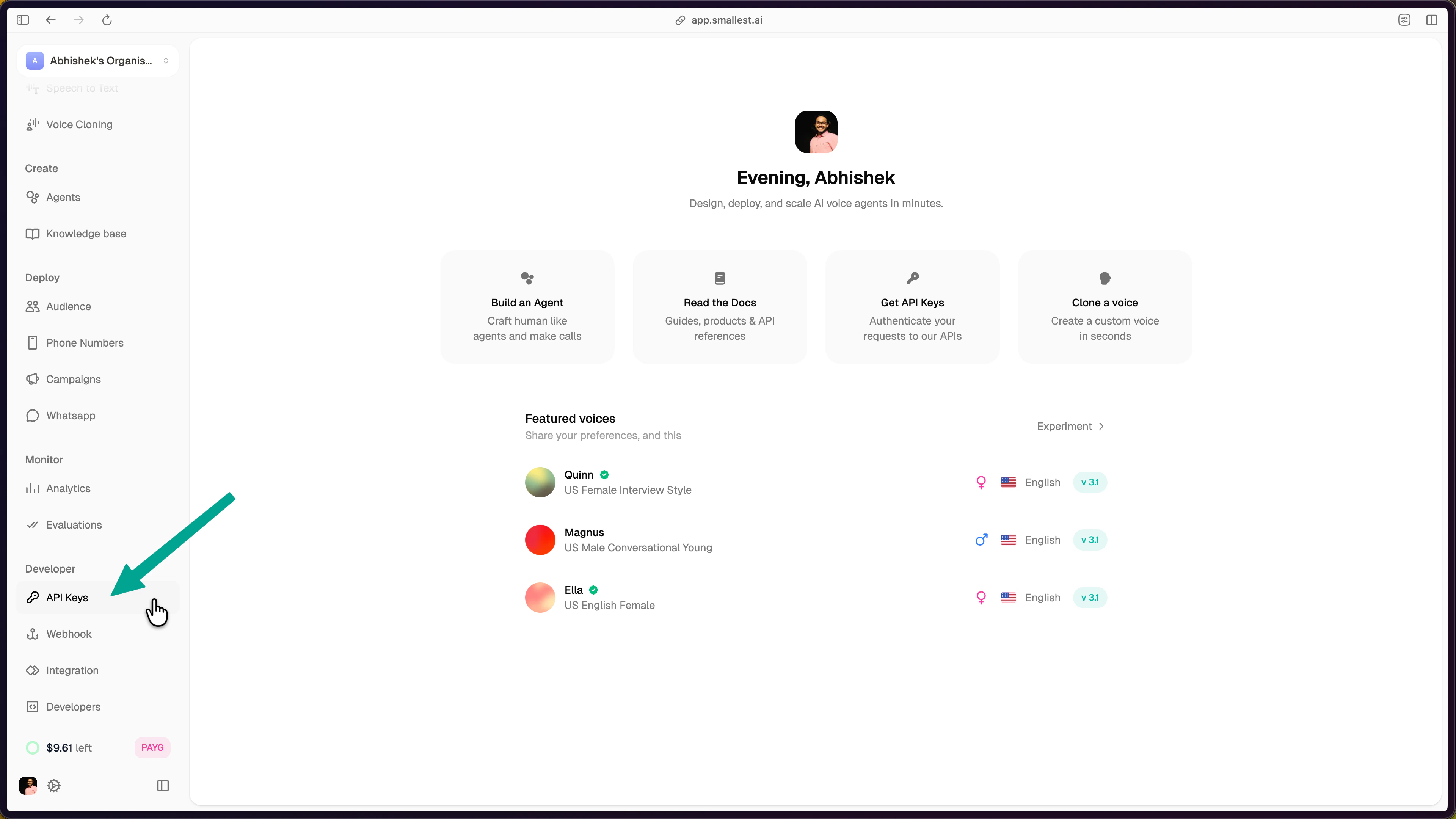
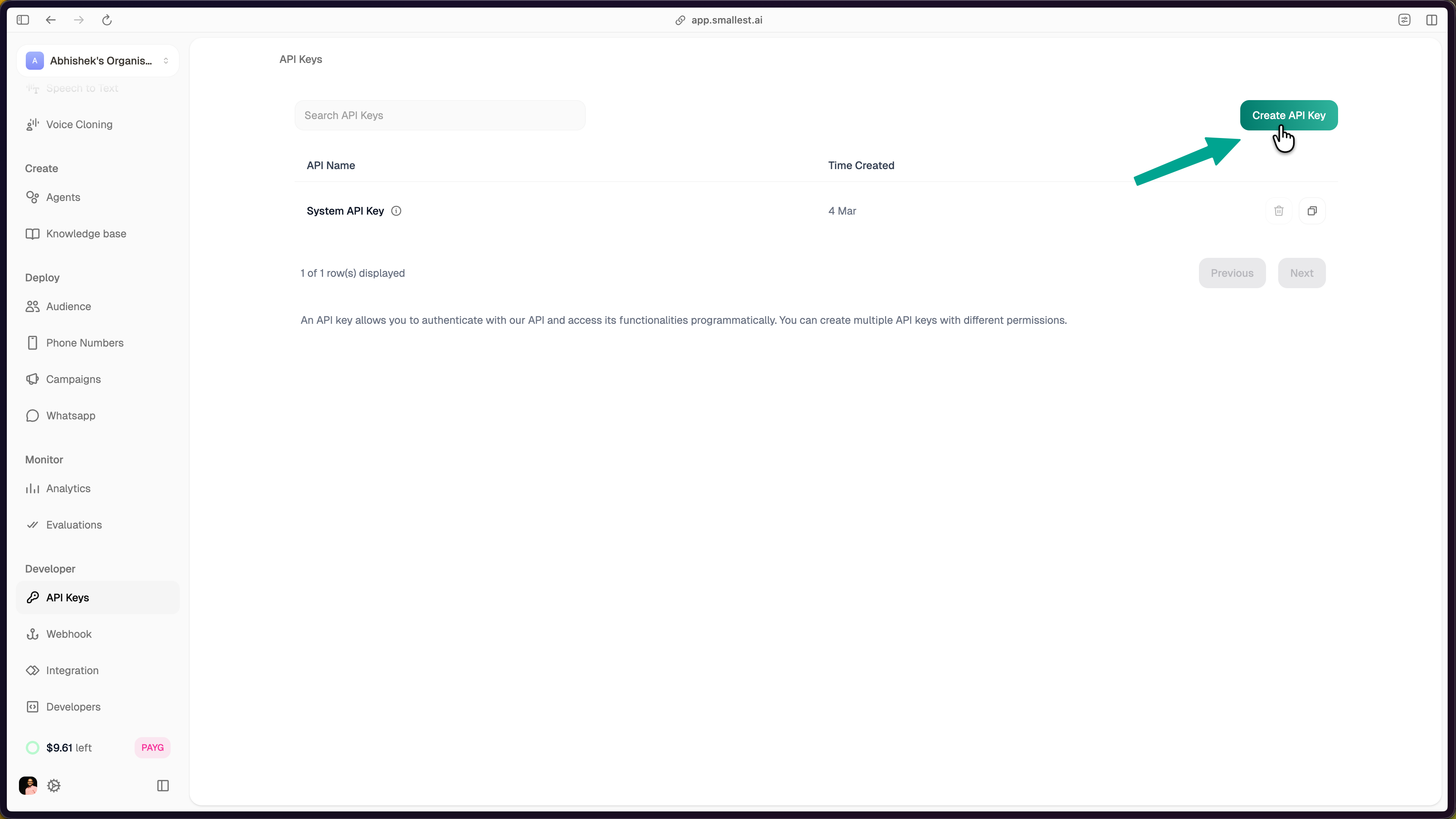
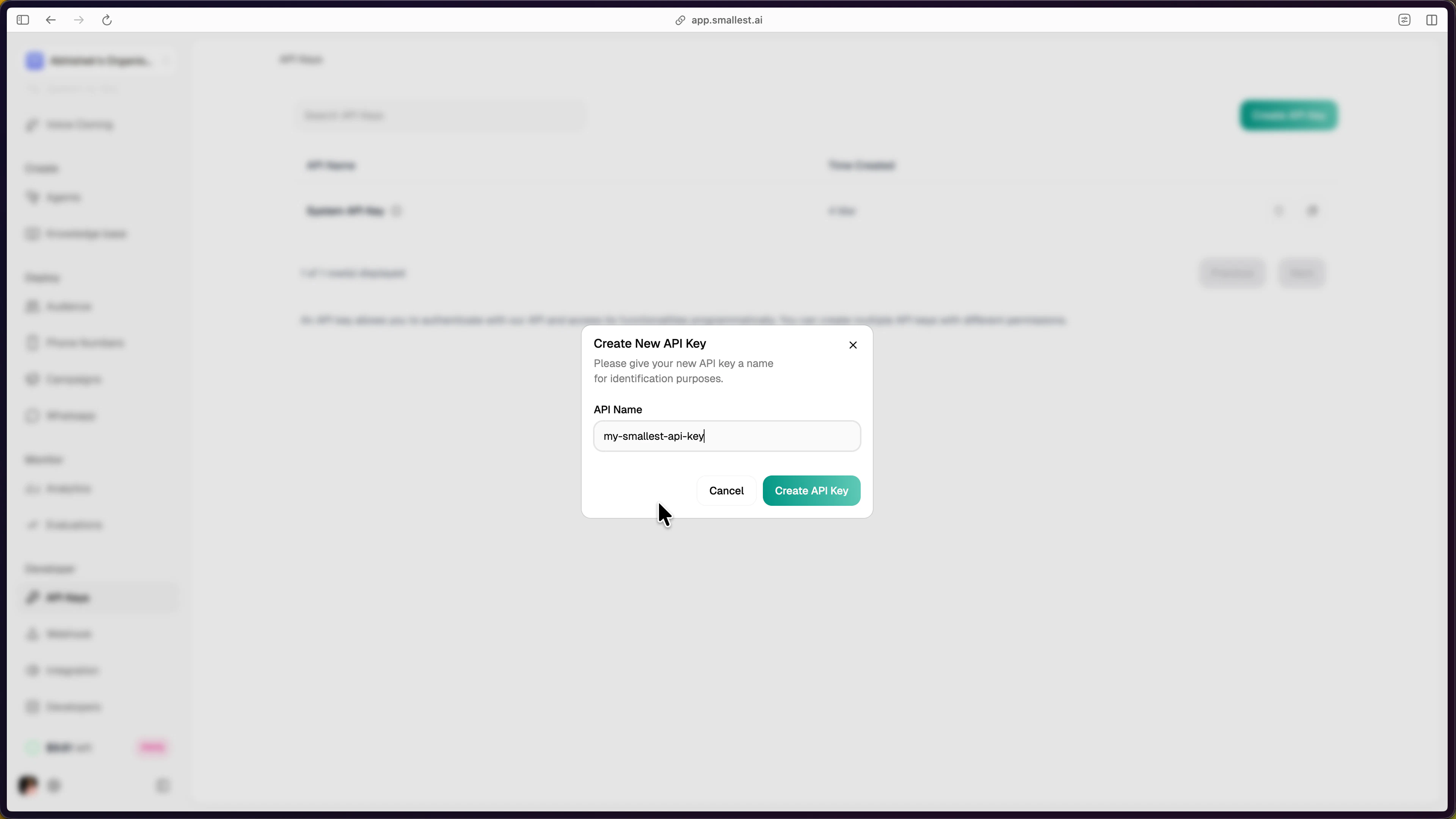
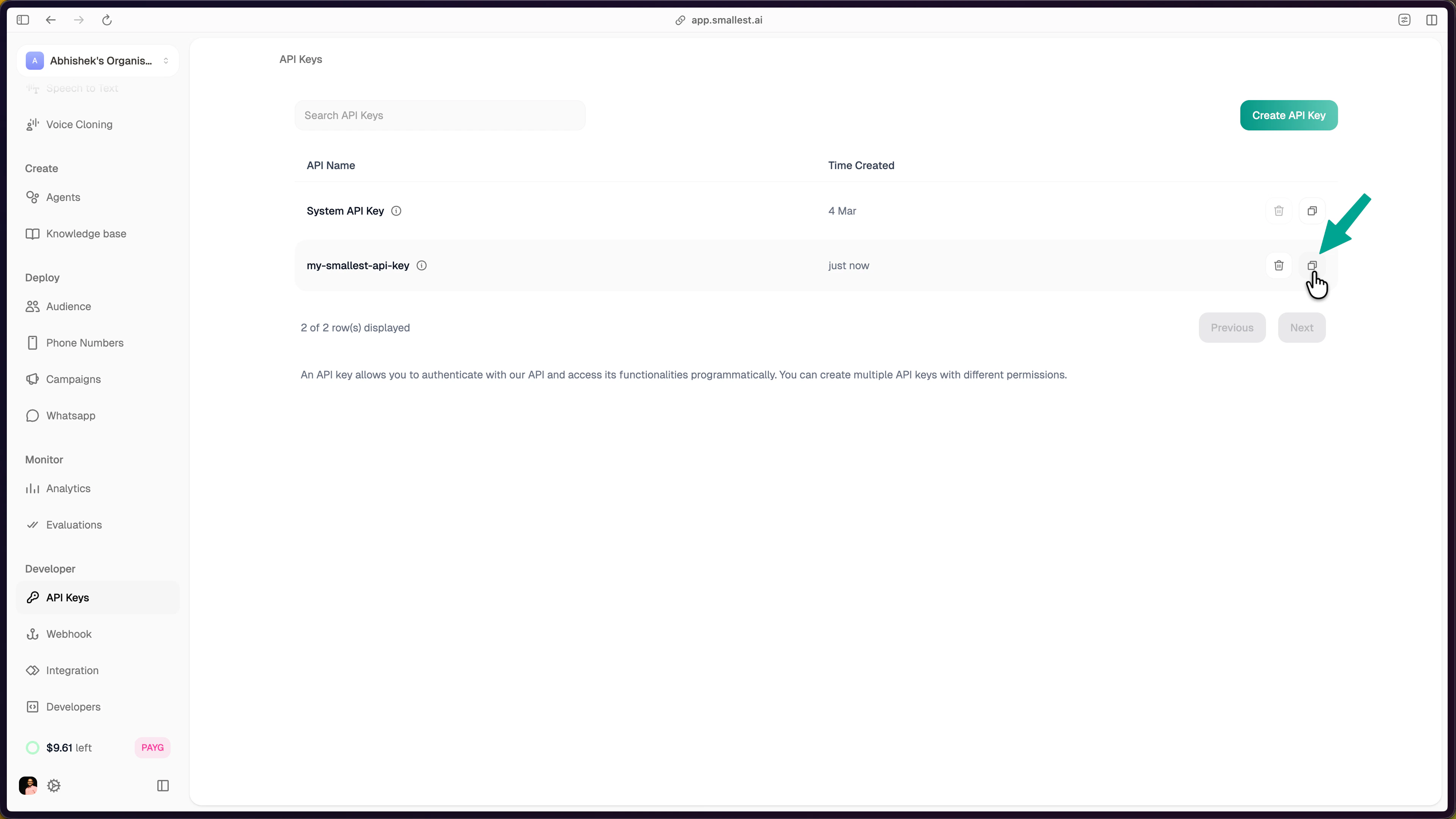
Step 2: Hear Audio in 30 Seconds
Paste this in your terminal — no install required:hello.wav — it should sound like this:
That’s broadcast-quality TTS with ~100ms latency.
Step 3: Build It Into Your App
Step 4: Explore More
Voices & Languages
Browse 80+ voices across English, Hindi, Spanish, and Tamil.
Streaming TTS
Real-time audio streaming via WebSocket for voice assistants.
Voice Cloning
Clone any voice from just 5-15 seconds of audio.
Pronunciation Dicts
Custom pronunciations for brand names and technical terms.
Key Parameters
| Parameter | Type | Default | Description |
|---|---|---|---|
text | string | required | Text to synthesize (max ~250 chars recommended) |
voice_id | string | required | Voice to use (e.g., magnus, olivia) |
sample_rate | int | 44100 | 8000, 16000, 24000, or 44100 Hz |
speed | float | 1.0 | Speech rate: 0.5 to 2.0 |
language | string | auto | en, hi, es, ta, or auto |
output_format | string | pcm | pcm, wav, mp3, or mulaw |
Need Help?
Join the Community
Ask questions, share what you’re building, and connect with other developers on Discord.